 Updated Dec 2009 (updates at the end)
I bought this to replace the similarly featured lenovo dock that wasn't DisplayLink certified.Compared to the Lenovo, a non-displaylink certified product, this product supports monitor rotation and the image quality looks very much like a direct connection to my laptop and not plagued with compression artifacts and discoloration.
Even though this is suppose to be plug-and-play, they should at least provide instructions on what to expect and what to do when things don't occur as expected.When I plugged mine in, nothing happened.I did notice a new cd-rom appear so I tried to install the drivers manually.It ran but gave no indication that it completed.Then I installed the drivers from DisplayLink and it still didn't work. I finally rebooted and it started working but stopped when I rebooted again.It may have been an incompatibility with remnants of the old Lenovo dock drivers and DisplayLink drivers so I tried to uninstall all that stuff, reboot, and start fresh.Now it seems to work better.
One rough edge is that if my laptop turns off my monitor after a period of idleness, I can't get the kensington-connected monitor to come back. Unplugging and replugging the device didn't help and the only solution was to reboot.I sometimes experienced the same issue if I bring my laptop out of hibernation, especially if I had cut power to the kensinton while my laptop was hibernating (no point in wasting power...). I installed Service Pack 3 onto my XP SP2 and hibernation seems to work more reliably, but the monitor power save feature will still cause the monitor to go blank. Very annoying. For now, my only workaround is to set my monitors to never turn off.
I contacted Kensington support regarding the issues with hibernation and power save and the response was unhelpful and not very technically relevant:
KENSINGTON: "We apologize for the inconvenience caused. We would like to inform you that when the computer goes into hibernation mode, all the active applications will be saved in the primary memory which can be restored when the computer wakes up from Hibernation mode.
In this regard, we would like to inform you that the Docking station model # 33926 does not have any internal memory to save the settings/active applications. Hence, when the computer wakes up from Hibernation mode, the external monitor screen will go blank."
I asked for clarification on the matter since DisplayLink themselves says their technology supports all power management modes:
ME: "I believe the problem is with the software/drivers rather than the hardware since unplugging and then replugging the device from usb/power does not bring the monitor back. Lets keep it simple:
Does K33926US support:
1) PC Hibernation?
2) PC Sleep/Standby?
3) Screen saver power save?"
The response was basically a copy-and-paste of the original response:
KENSINGTON: "We would like to inform you that when the computer goes into hibernation mode, all the active applications will be saved in the primary memory which can be restored when the computer wakes up from Hibernation mode.
The computer will not save any information about the external monitor. Due to this the external monitor will not work after hibernation.
We would like to inform you that the Docking station model # 33926 does not have any internal memory to save the settings/active applications."
It's like talking to a recording.
PROs:
+ DisplayLink certified and thus supports all their features
+ Great performance
+ Perfect quality
CONs:
- Installation may not be plug-n-play
- Not compatible with DisplayLink drivers
- May not work with your power management features
- Tech support is very much lacking
UPDATE Nov 2009:
I had continued to try to get Kensington support to fix the problem or look into ways to fix it, but it appears that anything out of the ordinary automatically gets classified as a limitation.I did find a way to prevent the device from not working when coming out from hibernation/sleep and it's to go to device manager and disable Network Adapters/LAN9500 USB 2.0 to Ethernet 10/100 Adapter.If you need the ethernet port, then this workaround is not for you. I told support about this workaround and how the issue may be related to the ethernet device/driver, and the response was basically thank you for trying to troubleshoot the issue but we have no interest in why it doesn't work and are happy to mark this as a limitation and close this case. I'm guessing the device and its drivers are made for Kensinton to resell and they themselves don't have enough technical control to affect development of drivers or troubleshoot the hardware.
UPDATE Dec 2009:
New drivers on the Kensington site that resolves the monitor power-save issue.WONDERFUL!(One more star added) The hibernate/sleep issue due to the ethernet port seems to work better now, but I did have it not work one time so I'm keeping that device disabled (ethernet drivers are still from Feb 2009).Interesting how the 'update notification' feature of the drivers wasn't able to tell me that new drivers were available.
When installing new drivers for this, sometimes an additional phantom display may appear in the display properties. I'm guessing this may happen if you install the drivers when the kensington is plugged in.Fix is to uninstall all kensington / displaylink devices from device manager, disconnect the kensington, uninstall all kensington / displaylink software from control panel, reboot, install the new drivers, and then plug in the kensington.
Click Here to see more reviews about: Kensington Universal Notebook Docking Station with VGA/DVI and Ethernet 4
Product Description:
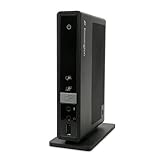
Turn your notebook into a desktop in one simple step with the Kensington Universal Notebook Docking Station sd400v. Simply plug a single USB cable into your notebook and you are instantly comfortable and connected to internet via a wired connection. Share this setup with any user. Auto-install design makes the initial installation a true "plug-n-play" experience. No CD software required. HD screen capable so you can connect to a very large external monitor and drastically increase your visual workspace. Front Dualview button makes dual screen setup easy. Front Audio ports and back speaker port lets you connect both 2.1 stereo speakers and internet chat headset. Docking station will not provide power to your laptop, but provide connectivity to peripherals and network via a single USB cable. Universal compatibility with all brands of notebooks, including netbooks, via USB: Acer, Asus, Compaq, Dell, Gateway, HP, IBM, Lenovo, Sony, Toshiba and more. Operating Systems Compatibility: PC including Windows XP (sp2, sp3, including Tablet PC editions), Windows Vista sp1 (32-bit and 64-bit editions) or later. Auto install supported for all PC running Windows XP and Windows Vista. NOT compatible with Mac computers. Security cable slot on side panel: add a Kensington security cable (sold separately) and combine it with a cable saver to secure both the docking station and its connected peripherals. Front LED indicator: Green indicates docking station is working and connected to computer. Package content: USB docking station sd400v, USB cable, 2.5Amp wall power adapter, DVI to VGA adapter, quick start guide.
 Get 29% OFF
Want to buy Kensington Universal Notebook Docking Station with VGA/DVI and Ethernet 4 at other amazon sites? Click the corresponding icon below:


0 comments:
Post a Comment